
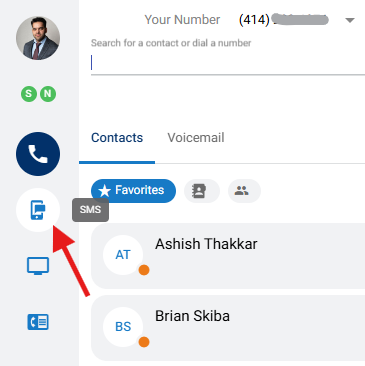
Users can send and receive SMS messages via the User Portal by using the option available in left menu.
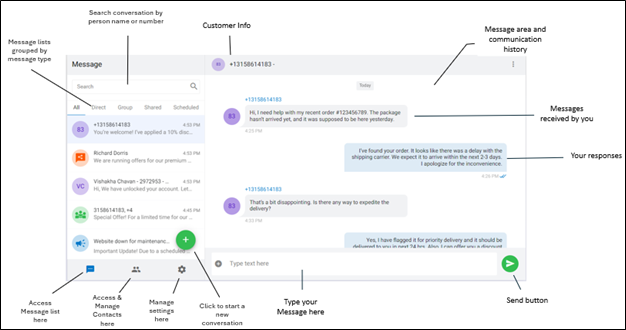
Interface:
Select the Messaging icon from the navigation panels located on the left side of your User Portal menu.
Click compose icon to Start Chat.
In the To: field, enter the Extension or 10-Digit Mobile Number you would like to contact.
Draft your message in the text field. You can identify this field by the text Start typing your message here.
Once your message is complete, select the Send icon.
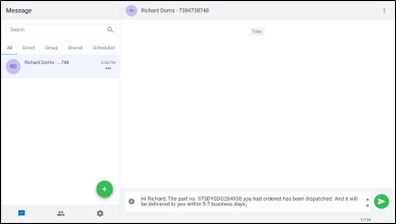
When a new SMS or a message in an existing conversation arrives while the user is on a different tab, a red dot will appear on the tab where the message was received to notify the user.

You can toggle between SMS Messages at any time by selecting the desired conversation from the conversation list. Each conversation preview includes: