
SMS for Microsoft Teams allows Teams users to send and receive SMS and MMS using their Microsoft Teams application.
Note: Not all licensing includes MMS capability. Check with your administrator before sending multimedia messages.
Note: Before following these steps, please confirm that your administrator has properly configured your Domain and DID settings.
Open Microsoft Teams and navigate to Apps
Search for TetraVX App and Add
Once added, clicking on the App will take you to page displaying below options.

Click on the SMS tab to start sending and receive text messages.
Click compose icon to Start Chat.
In the To : field, enter the Extension or 10-Digit Mobile Number you would like to contact.
Draft your message into the text field. You can identify this field by the text Start typing your message here.
Once your message is complete, select the Send icon.
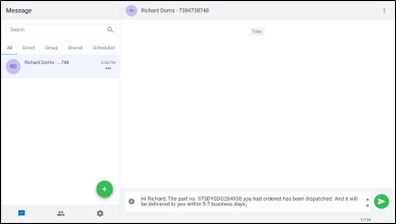
When a new SMS or a message in an existing conversation arrives while the user is on a different tab, a red dot will appear on the tab where the message was received to notify the user about an unread message.

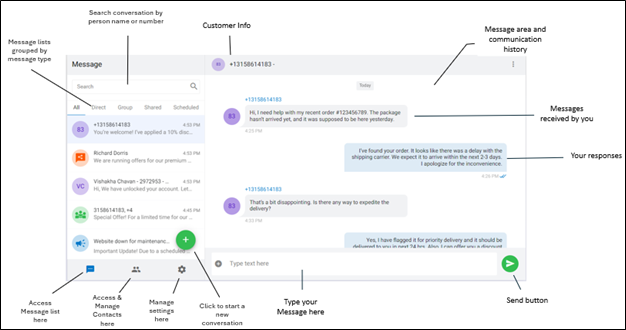
You can toggle between SMS Messages at any time by selecting the desired conversation from the conversation list. Each conversation preview includes:
Users can easily access a comprehensive list of all MMS content—both media and documents—sent or received within a conversation. These files are organized into two separate tabs: Media and Documents.