
While on a phone call, click on the blind transfer icon and it will turn green

Once the icon is green, complete one of the following:
While on a phone call, click on the attendant transfer icon and it will turn green

Once the icon is green, complete one of the following:
Once the called party has been contacted, verify if the transferred party would like to receive the transfer. You will then have 2 choices:
1. Complete the transfer by clicking on the Complete Transfer icon

2. Disconnect the call with the transferred party and go back to the original call by clicking on the Disconnect Attendant icon

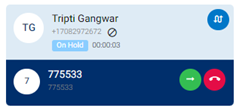
3. During the consultative session, the Agent can click on the Switch Line icon on the contact card, represented by a blue circle with white arrows to switch between Customer and second Agent.When the Agent switches to customer, second Agent is put on hold as shown on the contact card
Switch Line allows users to perform consultative transfers efficiently by enabling them to switch the call between the customer and the third party seamlessly.
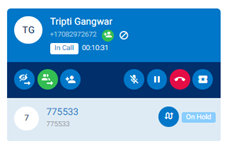
When the Agent switches back to second Agent, customer is put on hold as second agent is connected as shown on the contact card.
Conference can be performed with an external number, internal user or a queue. To start a conference for existing phone call, click on the Conference icon,

The current call participants will hear a tone when other parties join the conference.
Once there are 2 or more parties in the conference, you can do one of the following:
1. Add more partied to the conference by repeating previous steps using the Conference icon,
2. Mute yourself by clicking on the Mute icon,

3. Mute participants by clicking on the Mute icon of the party,

4. Disconnect a participant by clicking on the Drop Participant icon of the party

5. Remove yourself from the conference call by clicking on the End Call icon

or the Drop Participant icon on your extension
To pause the recording of the phone, click on the Pause Recording icon

To resume recording, click on the icon again
To mute or unmute a call, press the Mute/Unmute icon
To place a call on hold, press the Hold icon

To take a call out of hold, press the icon again

To end the call, press the End Call icon