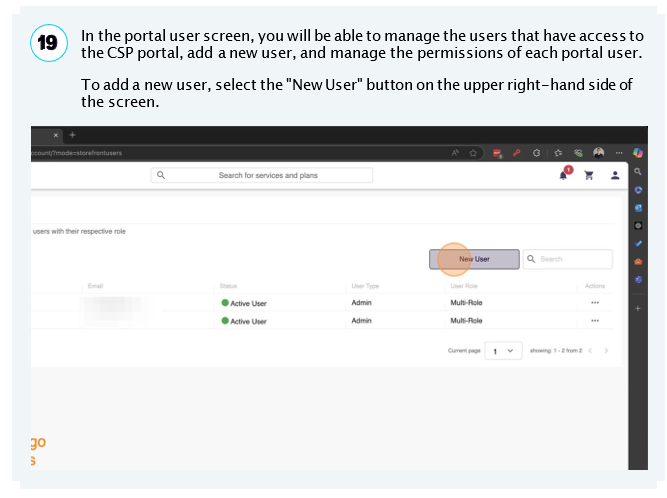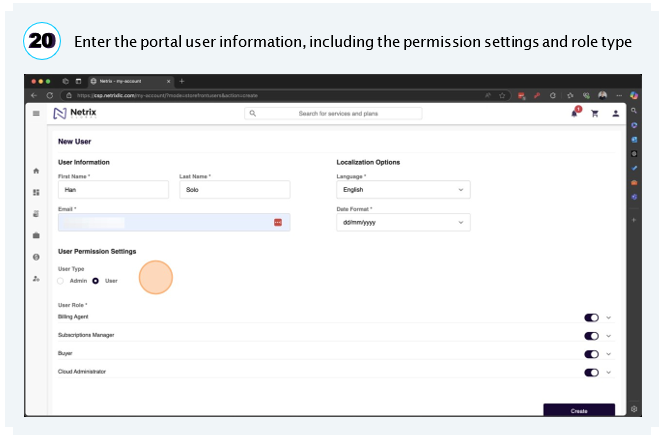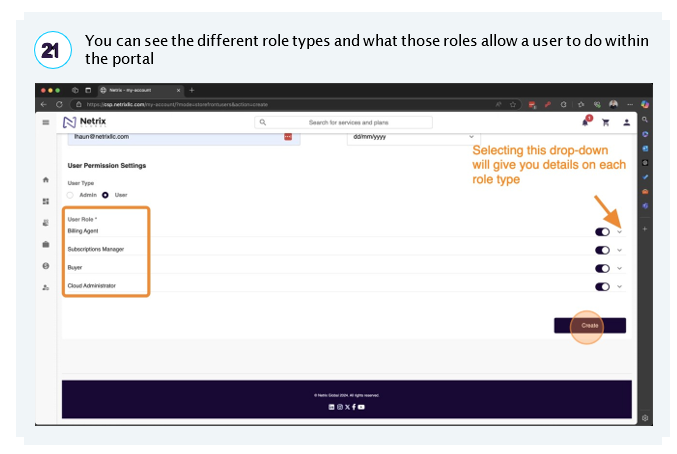
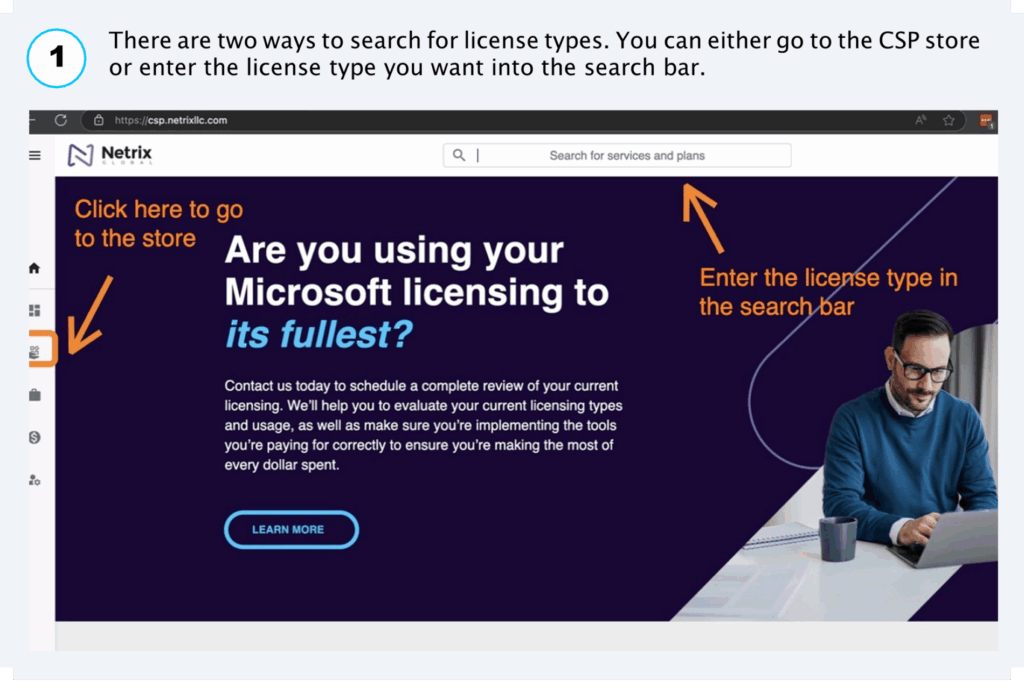
Get up and running fast. This quick-start shows you how to order CSP licenses, pick monthly vs annual billing, co-term new seats with existing renewals, assign licenses to end users, and add teammates with proper portal permissions—everything a new admin needs to manage licenses confidently.
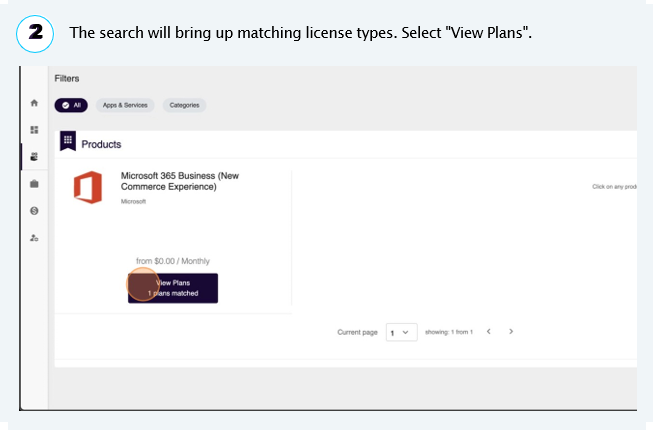
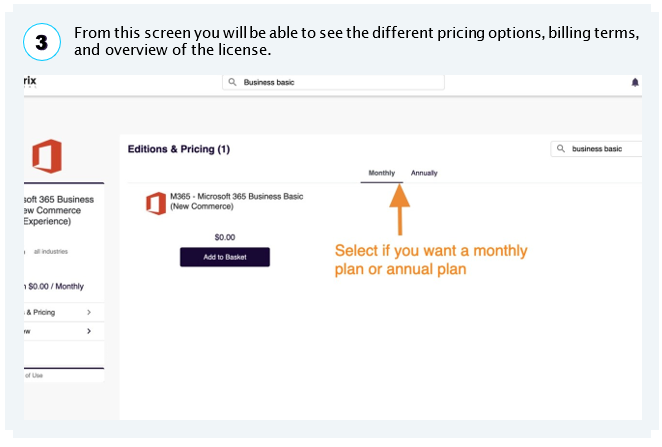
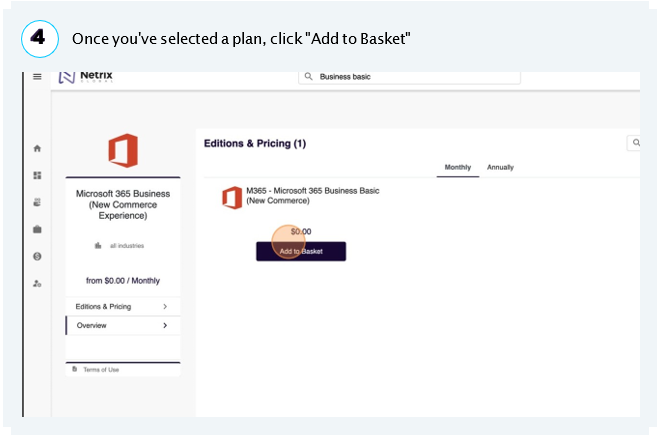
You will need to select which plan type you would like. The pricing for the license will be different depending on whether you select a monthly plan or an annual plan. You will be locked into a monthly or annual contract term based on this selection.
However, you will be able to select your payment options (monthly installments or annual installments) later in the ordering process. For more information on pricing and plans, please visit https://learn.microsoft.com/en-us/office365/servic edescriptions/office-365-platform-service-description/office-365-plan-options
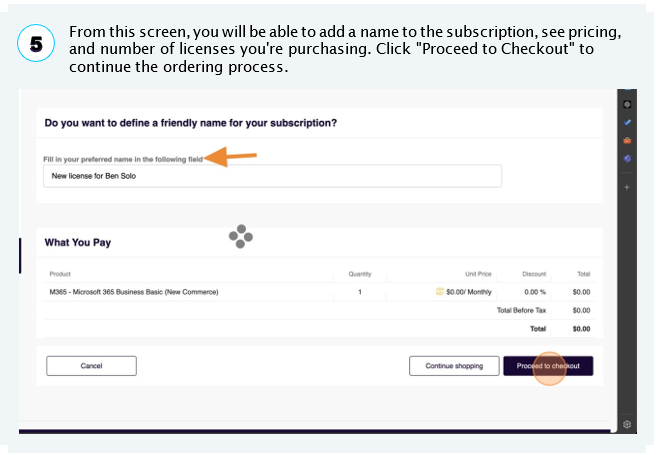
Adding a friendly name for your subscription can make it easier to manage when you have manage multiple subscriptions
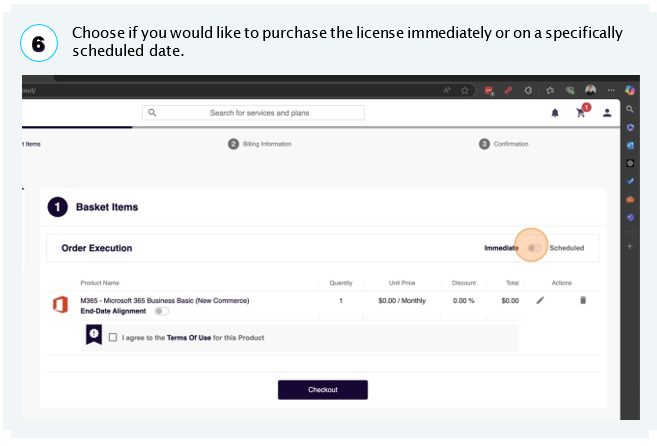
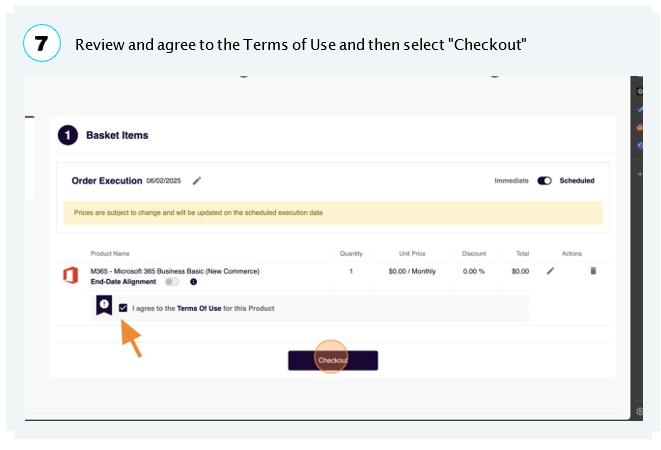
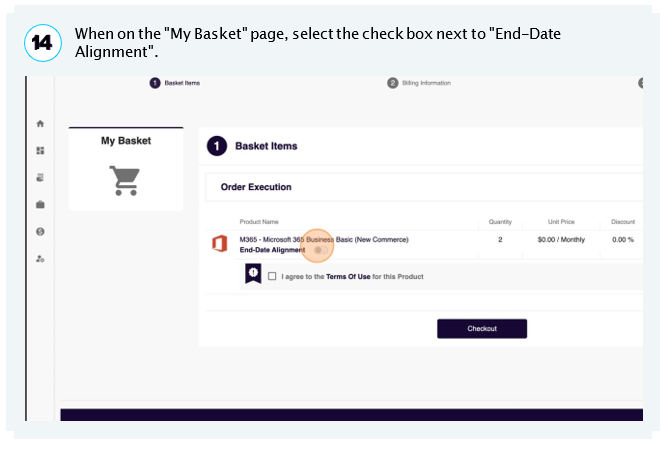
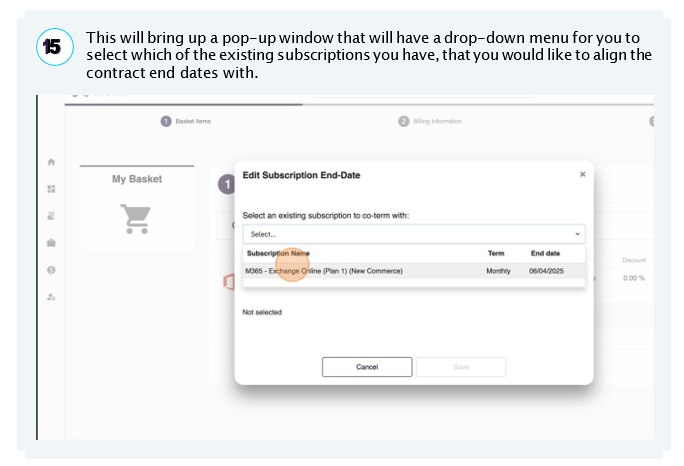
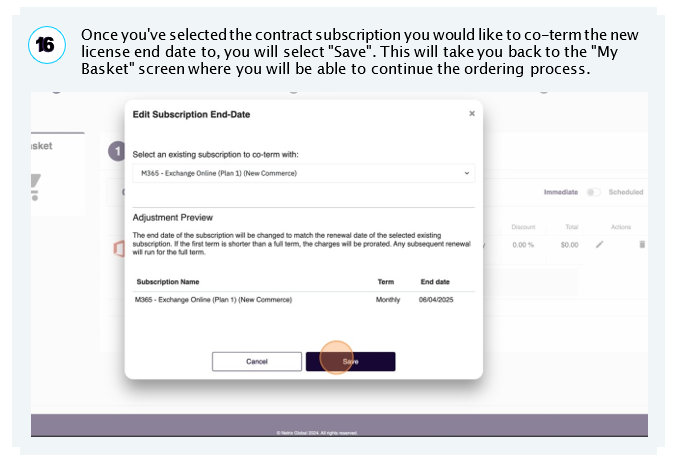
You can co-term this subscription to your other subscriptions during the checkout process. For more details on how to do so, please go to the “How to co-term” section (Step 14) of this guide for more information.
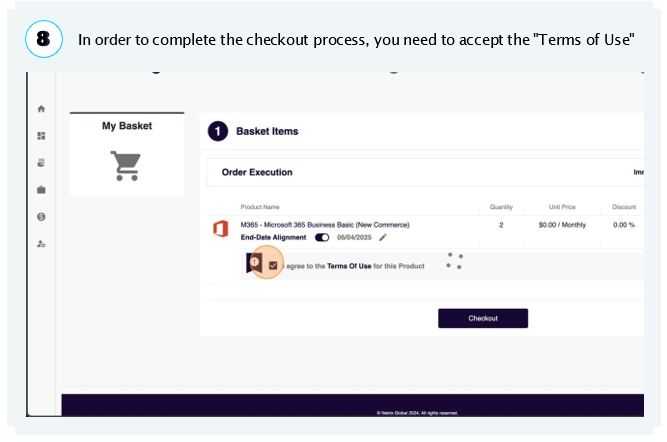
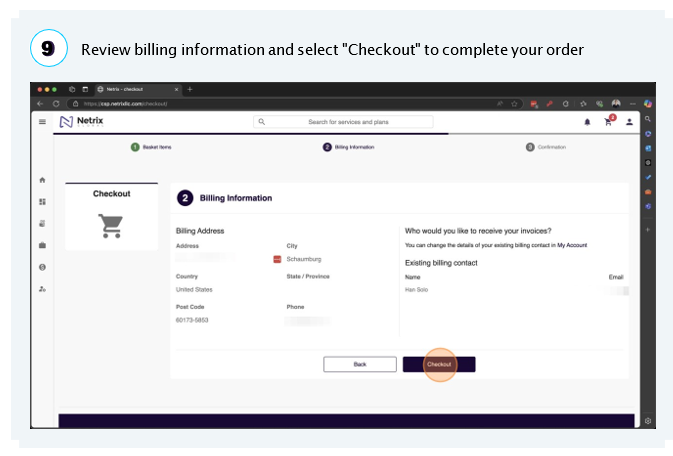
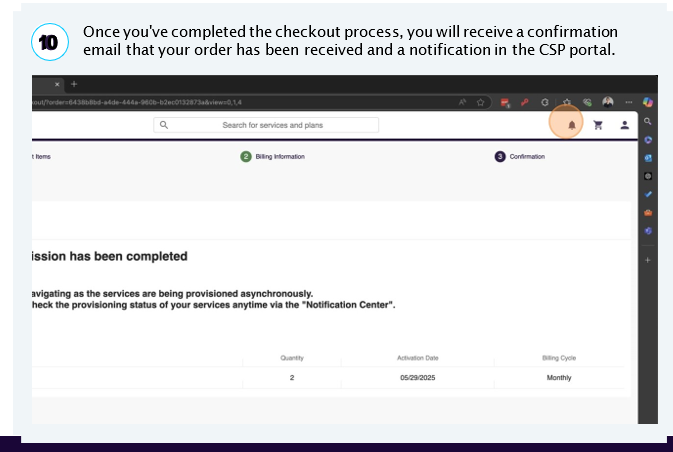
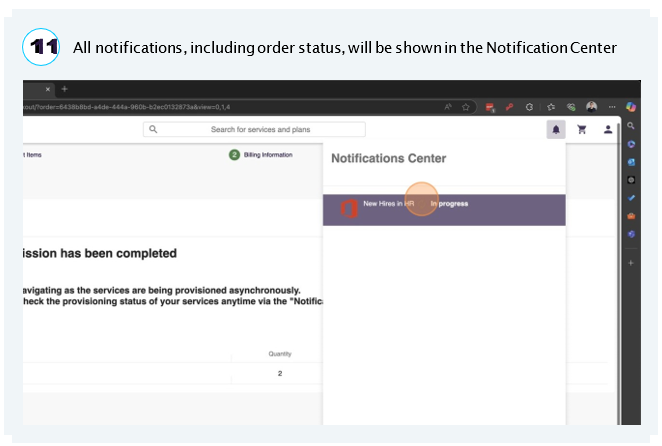
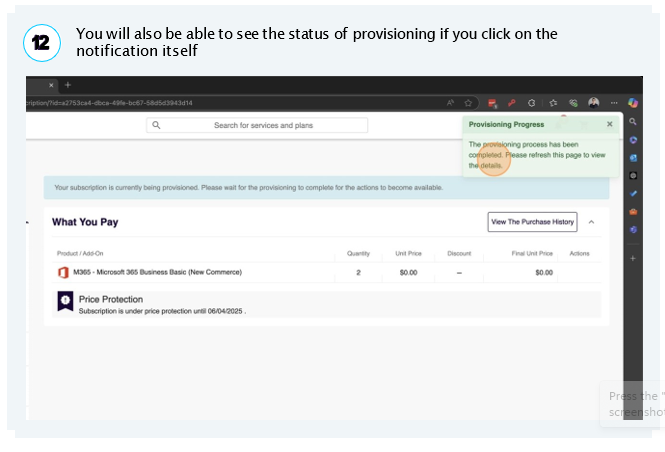
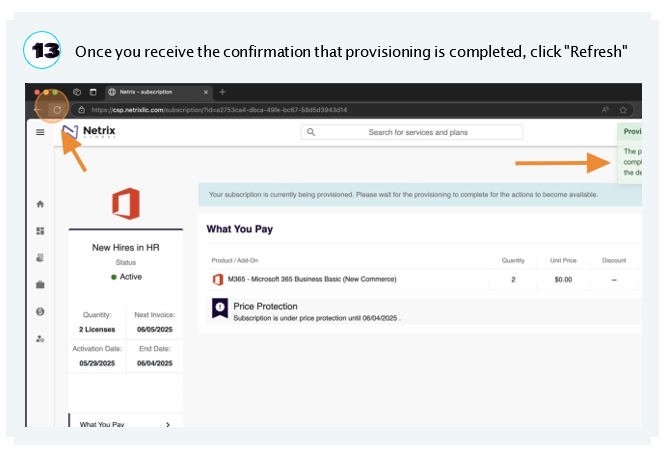
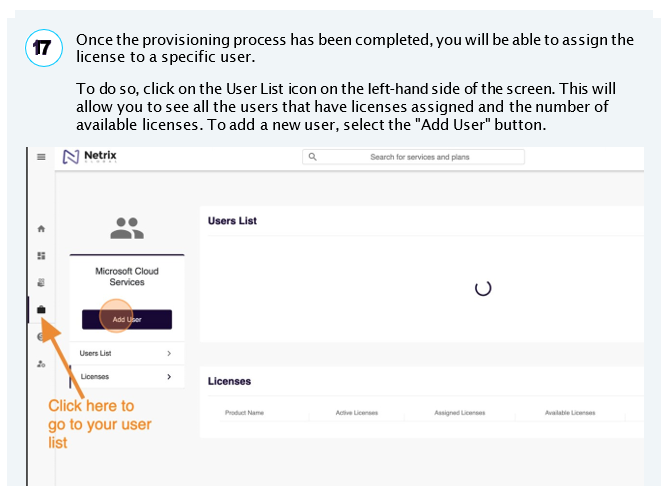
It can take up to 15 minutes for a license to be provisioned and ready for use
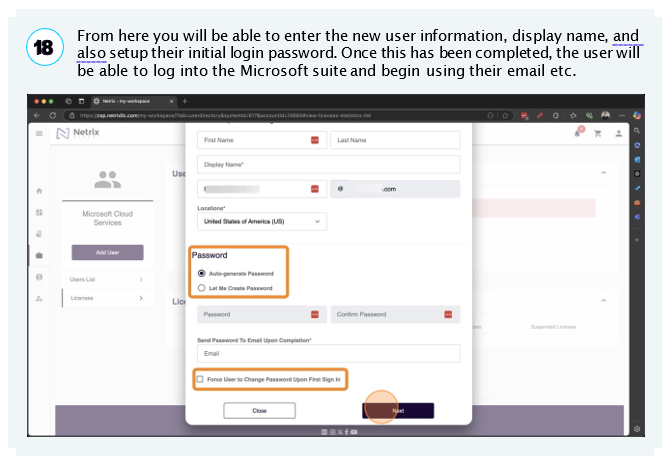
For security purposes, it is recommended that you select the option to force the user to setup a new password when they sign in.
If you grant someone access to the CSP portal, that person will be able to purchase new licenses. You’re responsible for all licenses purchased, so carefully consider whom you give access to.